Engineering
Create Thumbnail for YouTube Using ApyHub API
Learn how to create thumbnail for YouTube videos step by step with ApyHub API. Get efficient, customizable YouTube thumbnails for video workflows fast.
NI
Nikolas Dimitroulakis
Last updated on December 26, 2025
Create Thumbnail for YouTube Using ApyHub API Easily
More than 500 hours of content are uploaded to YouTube every minute demanding smarter workflows from every American and global startup team. For product managers and developers, automating thumbnail generation with robust API tools frees up bandwidth and improves consistency in fast-paced environments. This guide uncovers proven steps for integrating efficient thumbnail creation directly into your YouTube process, helping you deliver sharper visuals and unlock real-time impact without manual hassles.
Table of Contents
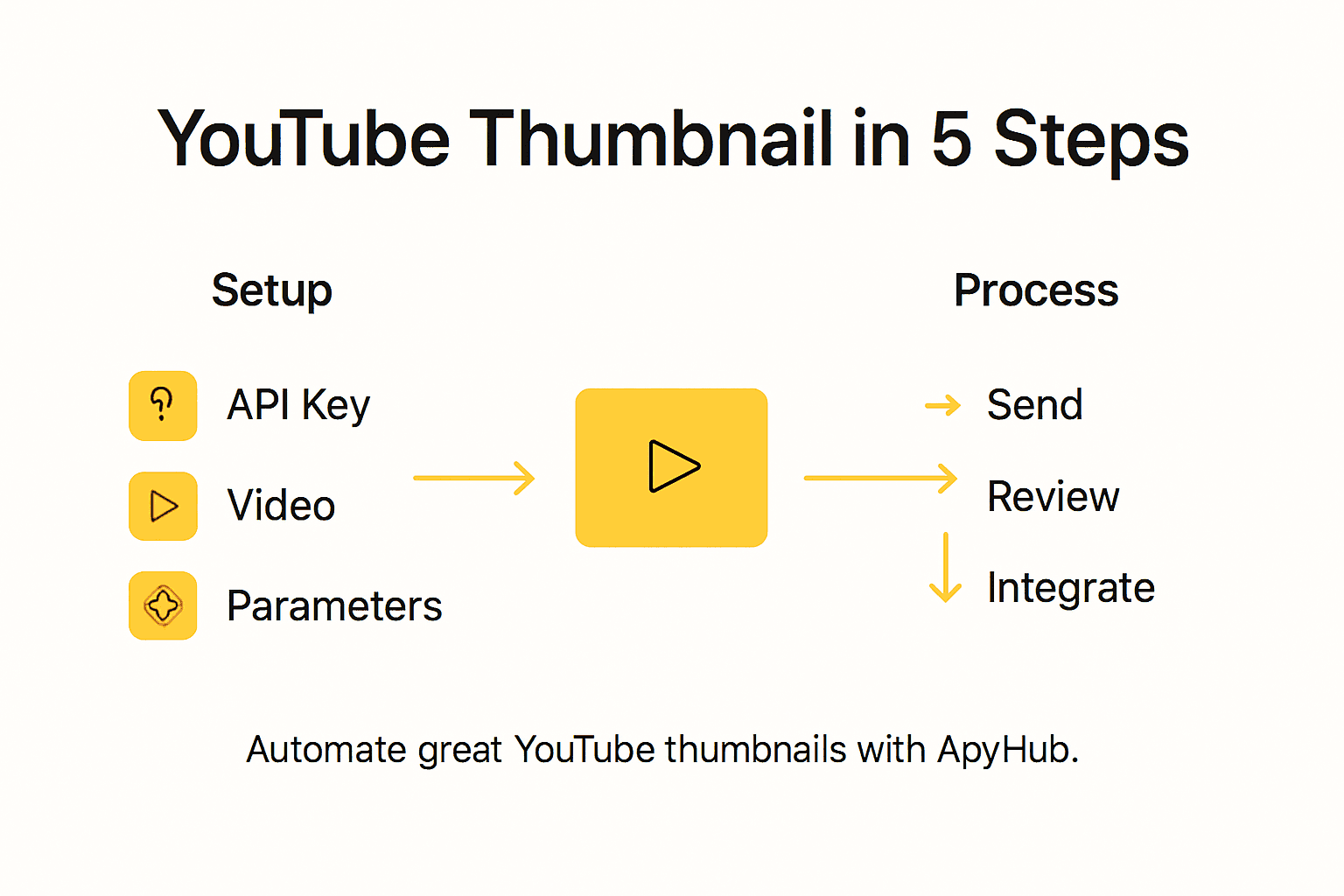
- Step 1: Prepare API Keys And Video Assets
- Step 2: Configure Thumbnail Generation Parameters
- Step 3: Send Video To Apyhub Thumbnail Api
- Step 4: Retrieve And Review YouTube Thumbnails
- Step 5: Integrate Thumbnails Into YouTube Workflow
Quick Summary
| Key Takeaway | Explanation |
|---|---|
| 1. Secure API Keys and Credentials | Obtain unique API keys from ApyHub and store them safely for access. |
| 2. Configure Thumbnail Parameters | Set image dimensions and extraction timestamp for optimal thumbnails. |
| 3. Choose Processing Mode Wisely | Select synchronous or asynchronous depending on your thumbnail extraction needs. |
| 4. Validate Thumbnail Quality | Check generated thumbnails for clarity and alignment with your video content. |
| 5. Consistent Thumbnail Branding | Develop a cohesive design strategy to enhance recognition across your videos. |
Step 1: Prepare API Keys and Video Assets
Before extracting YouTube video thumbnails with ApyHub's powerful API, you'll need to gather two essential components: your authentication credentials and the video source files. Generating thumbnails requires precise preparation to ensure smooth API integration and successful image extraction.
To begin, navigate to the ApyHub developer portal and create your free account. During registration, you will receive a unique API key that authenticate your requests. These keys act as your digital passport, allowing secure access to thumbnail generation services. Carefully store your API key and secret in a secure location, as they provide direct access to your ApyHub account resources.
Next, collect the video files you want to generate thumbnails from. Ensure these videos are in standard formats like MP4, AVI, or MOV and meet ApyHub's upload requirements. Organize your video assets with clear filenames and check their resolution and file size to guarantee compatibility with the thumbnail extraction process.
Pro tip: Always maintain a backup of your original video files and API credentials in a secure, encrypted location to prevent unexpected data loss.
Step 2: Configure Thumbnail Generation Parameters
Thumbnail generation requires precise configuration to extract the perfect visual representation from your video. By carefully setting specific parameters, you can customize how ApyHub captures and transforms video frames into compelling preview images.
When configuring thumbnail parameters, you'll want to focus on key attributes that control image quality and extraction. Detailed API configuration options allow you to specify critical details like desired image dimensions, extraction timestamp, and file format. These settings determine how accurately the thumbnail represents your video content. For instance, you can select a specific second in the video timeline to capture the most representative frame or set exact pixel dimensions to match your target platform requirements.
Start by defining your thumbnail specifications strategically. Consider the intended use case whether its social media, website headers, or video platform previews. Specify parameters such as width and height to ensure optimal visual presentation. Pay close attention to resolution and aspect ratio to maintain professional image quality across different display environments.
Pro tip: Test multiple thumbnail extraction points to identify the most engaging visual representation of your video content.
To help you select the ideal thumbnail generation parameters, here is a comparison of common settings and their effects:
| Parameter | Purpose | Typical Values | Impact on Thumbnail |
|---|---|---|---|
| Image Dimensions | Controls size | 1280x720, 1920x1080 | Affects clarity and fit |
| Extraction Timestamp | Picks frame in video | 5s, 10s, 30s | Changes video moment |
| Aspect Ratio | Ensures correct display | 16:9, 1:1, 4:3 | Influences composition |
| File Format | Sets image type | JPEG, PNG, WebP | Alters compatibility |
Step 3: Send Video to ApyHub Thumbnail API
Now that you have prepared your video and configured the generation parameters, it is time to send your video to ApyHub for thumbnail extraction. This critical step transforms your video file into a compelling visual preview that captures the essence of your content.
Comprehensive API implementation guides reveal multiple methods for submitting your video to the thumbnail generation service. You can send either a direct video file or a video URL depending on your specific workflow requirements. When making the API request, include your authentication credentials and the specific thumbnail generation parameters you previously configured. Pay attention to the request payload structure, ensuring you provide all necessary metadata and extraction specifications.
The API supports both synchronous and asynchronous processing modes, giving you flexibility in handling thumbnail generation. For synchronous requests, you will receive the generated thumbnail immediately, while asynchronous requests allow for more complex processing workflows. Select the approach that best matches your application architecture and performance requirements.
Here's a summary of synchronous vs. asynchronous API processing for thumbnail generation:
| Mode | Workflow Speed | Use Case Example | Typical Outcome |
|---|---|---|---|
| Synchronous | Immediate response | Small batch extraction | Thumbnail returned instantly |
| Asynchronous | Delayed, poll status | Large files or automation | Thumbnail available later |
Pro tip: Implement error handling mechanisms to manage potential API request failures and ensure robust thumbnail generation workflows.
Step 4: Retrieve and Review YouTube Thumbnails
With your thumbnail generation request processed, you are now ready to retrieve and carefully examine the generated images. This crucial step ensures that the extracted thumbnails meet your visual and quality standards for YouTube content.
Practical thumbnail retrieval techniques involve monitoring the API job status and collecting the processed image files. Depending on whether you selected synchronous or asynchronous processing, you will either receive the thumbnail immediately or need to poll the API for completion. Carefully parse the API response, extracting the thumbnail URL or file path. Verify that the image dimensions, file format, and visual representation align with your initial configuration requirements.
Critical review involves examining the thumbnail for key visual elements such as clarity, color balance, and representativeness of the video content. Assess whether the extracted frame effectively captures the essence of your video and will attract viewer engagement. If the generated thumbnail does not meet your expectations, you can repeat the generation process with adjusted parameters to optimize the result.
Pro tip: Create an automated quality check script that validates thumbnail characteristics like resolution, aspect ratio, and visual clarity before final publication.
Step 5: Integrate Thumbnails Into YouTube Workflow
After successfully generating your video thumbnails, the final step involves seamlessly integrating these visual assets into your YouTube content management process. This stage transforms your generated thumbnails from standalone images into strategic content marketing tools.
To integrate the thumbnails, navigate to YouTube Studio and upload your selected thumbnail image directly to the video editing section. Most content creators prefer selecting the most engaging thumbnail that accurately represents their video content and attracts viewer attention. YouTube allows manual thumbnail uploads, giving you complete control over your video's visual presentation. Ensure the uploaded thumbnail meets YouTube platform specifications including file size, dimensions, and format requirements.
Consider developing a consistent visual branding strategy for your thumbnails. This might involve using similar color schemes, typography, or graphic elements across multiple videos to create a recognizable visual identity. Experiment with different thumbnail designs and track audience engagement metrics to understand which visual approaches generate the most viewer interest and click through rates.
Pro tip: Maintain a thumbnail template library with pre-designed graphic elements to streamline your content creation workflow and ensure visual consistency across your YouTube channel.
Simplify YouTube Thumbnail Creation with ApyHub's Ready-to-Use APIs
Creating the perfect YouTube thumbnail can be a challenge when managing video assets, configuring extraction parameters, and ensuring seamless integration with your workflow. This article breaks down the process using the ApyHub API to help you generate high-quality thumbnails efficiently. If you are looking to save time, reduce complexity, and automate thumbnail generation while maintaining full control over customization, ApyHub offers a comprehensive solution.
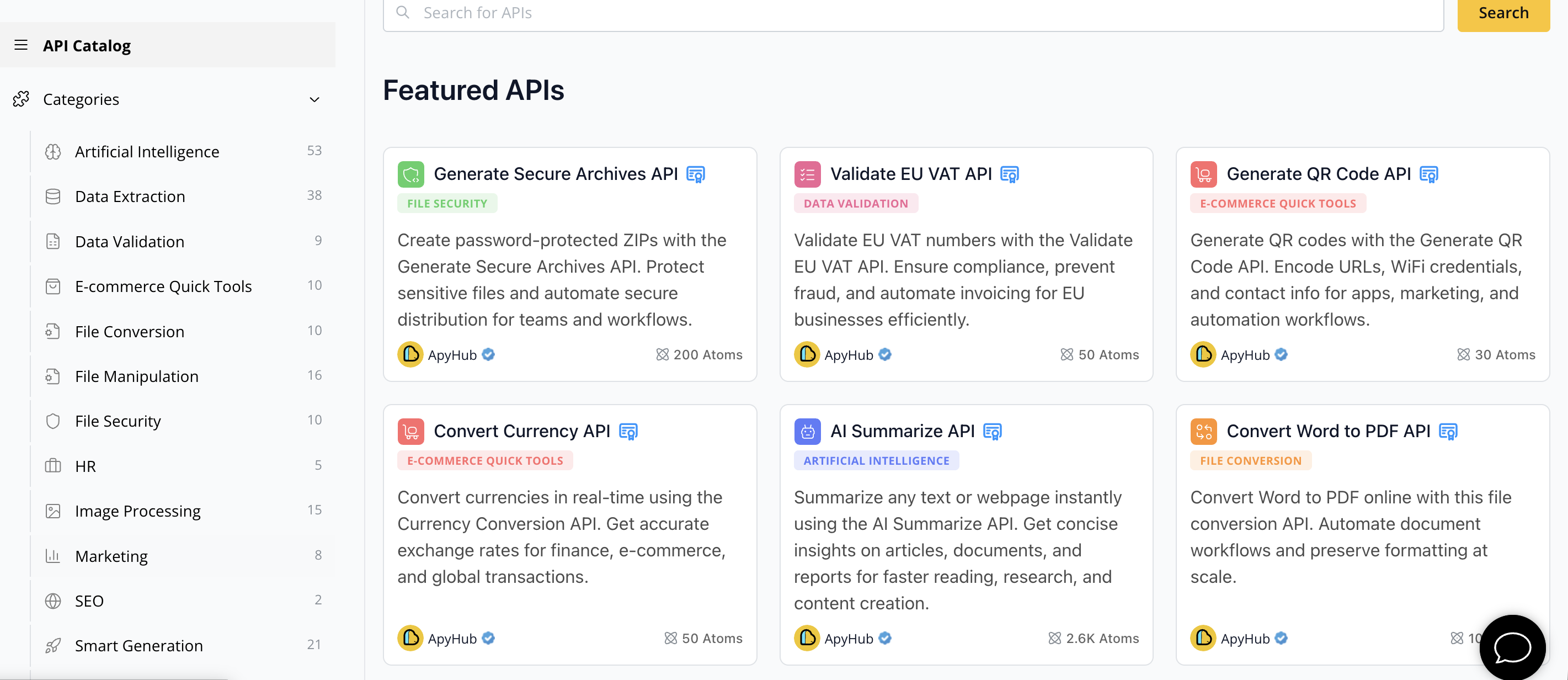
Unlock the power of over 150 reliable APIs at ApyHub API Marketplace designed for developers and teams who want to ship faster by avoiding building common functionalities from scratch. From video processing to AI image analysis, ApyHub’s solutions help you streamline development and automate tasks like thumbnail creation. Explore how you can accelerate your YouTube content production with tools that easily integrate into your workflow. Visit ApyHub Catalog to get started today and experience smoother, faster thumbnail generation.
Frequently Asked Questions
How do I obtain my ApyHub API key for thumbnail generation?
To obtain your ApyHub API key, create an account on the ApyHub developer portal. Once registered, you will receive your unique API keys that will allow you to access thumbnail generation services securely.
What video formats are supported for thumbnail extraction using ApyHub API?
The ApyHub API supports standard video formats like MP4, AVI, and MOV for thumbnail extraction. Ensure that your videos meet the upload requirements and are stored with clear filenames to facilitate the extraction process.
How can I configure the thumbnail generation parameters with ApyHub API?
You can configure the thumbnail generation parameters by specifying attributes such as image dimensions, extraction timestamp, aspect ratio, and file format. Carefully choose these settings to ensure your thumbnail accurately represents your video content and meets your presentation needs.
What is the difference between synchronous and asynchronous processing in the ApyHub API?
Synchronous processing provides an immediate response with the generated thumbnail, ideal for small batch extractions. In contrast, asynchronous processing allows for more complex workflows, returning the thumbnails later, which suits larger files or automated processes.
How do I review and ensure the quality of the generated YouTube thumbnails?
After generating the thumbnails, retrieve them and examine key visual elements such as clarity and color balance. Use a quality check method to validate aspects like resolution and aspect ratio, ensuring the thumbnails meet your standards for viewer engagement.
What steps should I take to integrate the generated thumbnails into my YouTube videos?
To integrate your thumbnails into YouTube, navigate to YouTube Studio and upload your selected thumbnail during video editing. Ensure the thumbnail meets YouTube’s specifications and consider maintaining a consistent visual branding strategy for your channel.