Automate Image Compression Using ApyHub and n8n (No Coding Required)
Image-heavy workflows are everywhere. From websites and CMS platforms to marketing pipelines and internal tools, images move constantly across systems. But large image files slow down performance, increase storage costs, and often require manual optimization that does not scale.
This tutorial shows how to automatically compress images in bulk using n8n, a visual workflow automation tool, and the ApyHub Image Compression API. The entire workflow is built without writing any application code, making it suitable for developers, product teams, and non-technical users alike.
By the end of this guide, you will have a working automation that downloads images, compresses them using ApyHub, and returns optimized files with a single click.
01Table of Contents
- What You Will Achieve
- Tools Used in This Tutorial
- Workflow Overview
- Step-by-Step Workflow Setup in n8n
- Node-by-Node Explanation
- Accessing the ApyHub Image Compression API
- Why Use ApyHub for Image Compression
- Common Pitfalls and Best Practices
02What You Will Achieve
By following this tutorial, you will learn how to:
- Take a list of image URLs
- Download each image automatically
- Send images to ApyHub for compression
- Receive optimized images with reduced file size
- Run the entire process without writing code
This workflow can be reused for websites, CMS pipelines, marketing assets, or bulk image processing tasks.
03Tools Used in This Tutorial
| Tool | Purpose |
|---|---|
| n8n | Visual workflow automation tool used to build and run the process |
| ApyHub | Provides the Image Compression API that optimizes images automatically |
04Workflow Overview
The workflow consists of four simple steps:
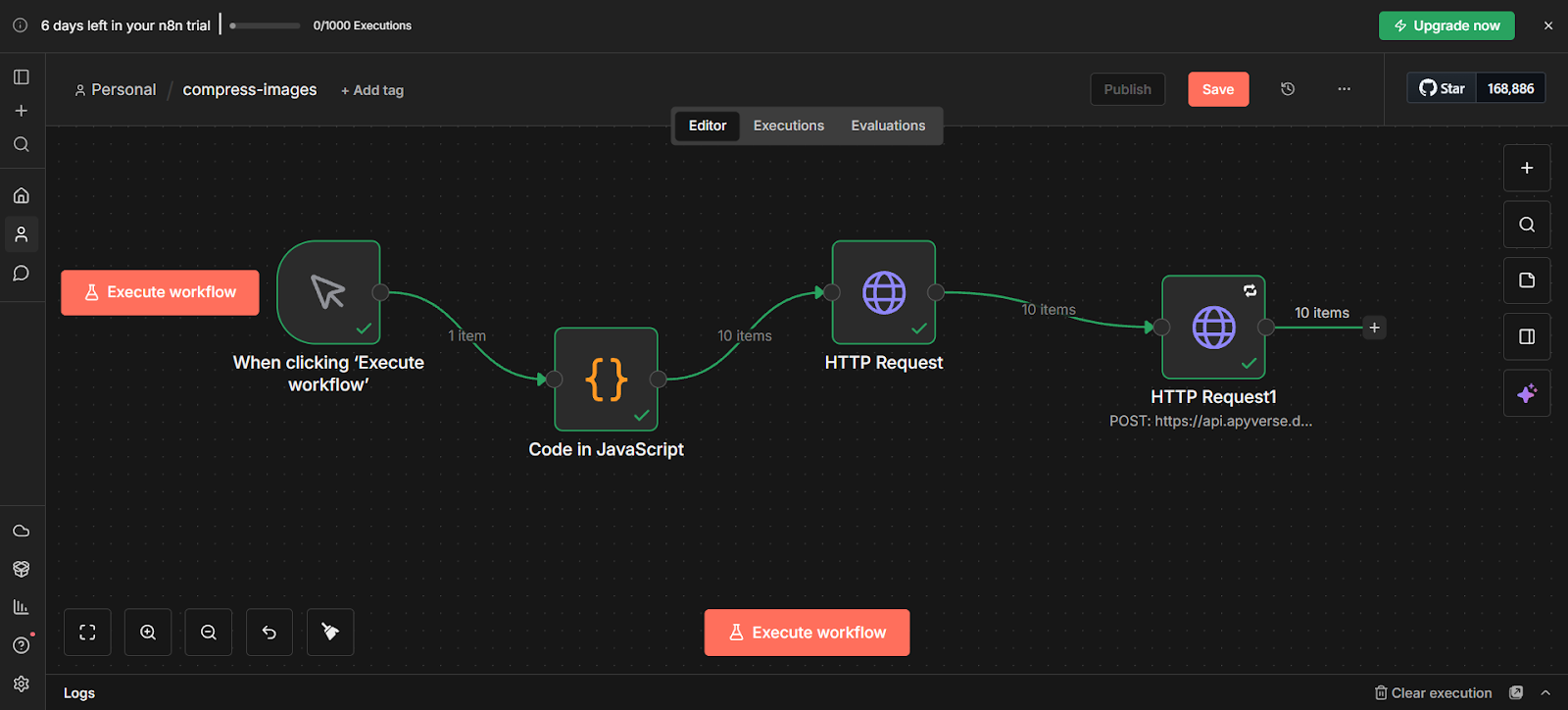
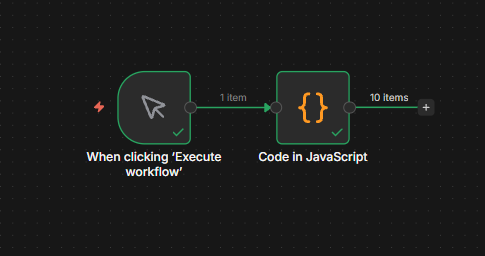
- Start the workflow manually
- Generate a list of image URLs
- Download each image
- Compress each image using the ApyHub Image Compression API
Each step is handled by a node in n8n, allowing you to visually understand and control the process.
05Step-by-Step Workflow Setup in n8n
Step 1: Open n8n
Go to the n8n website at:
👉 https://n8n.io
06Sign in to your account or create a new one. Once logged in, you will land on the dashboard.
Step 2: Create a New Workflow
From the dashboard:
-
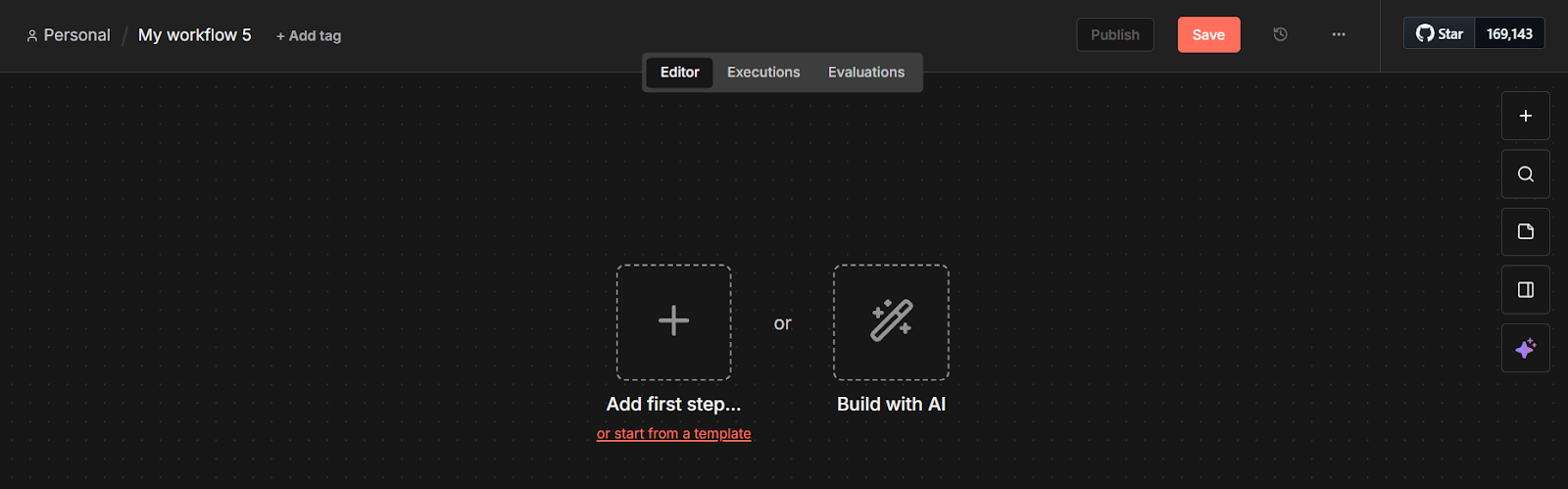
Click Create Workflow

-
A blank workflow canvas will open
-
Click the plus (+) icon to start adding nodes
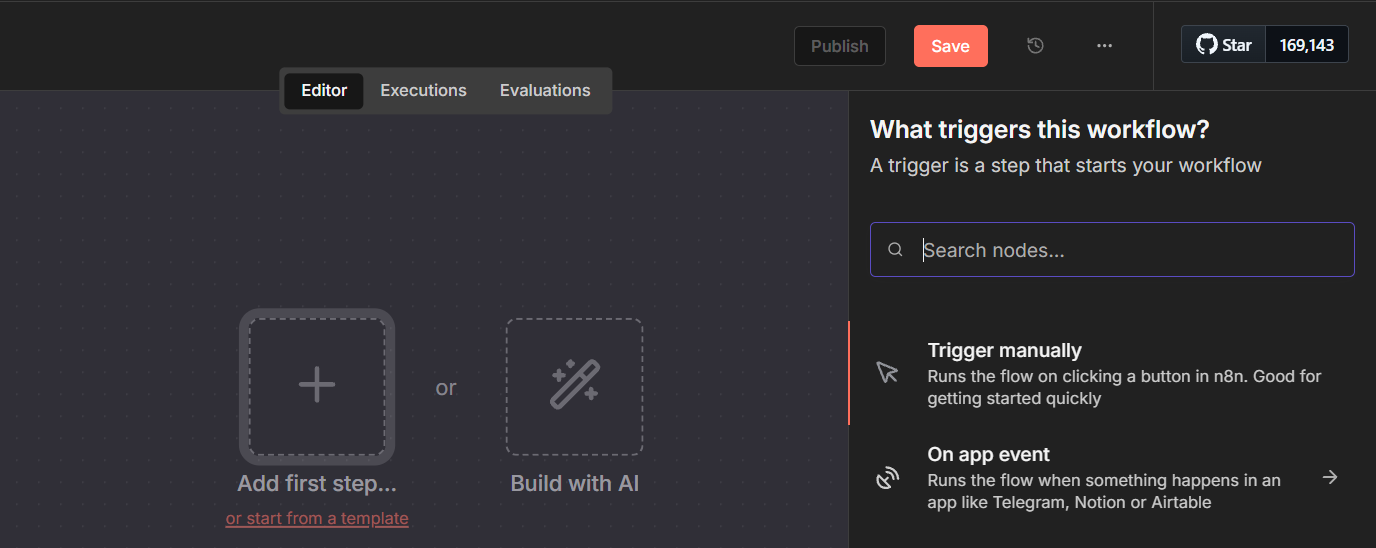
This canvas is where your automation logic will live.
Step 3: Generate Image URLs Using a Code Node
To simulate real-world image inputs, we start by generating image URLs.
-
Add a new node and search for Code
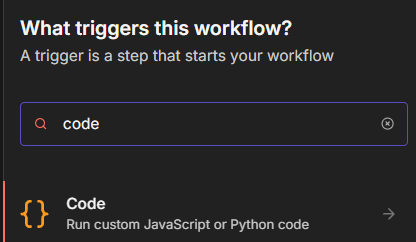
-
Select JavaScript
-
Paste the following code:
return Array.from({length: 10}, (_, i) => ({
  json: {
    url: `https://picsum.photos/id/${i+1}/800/600.jpg`
  }
}));
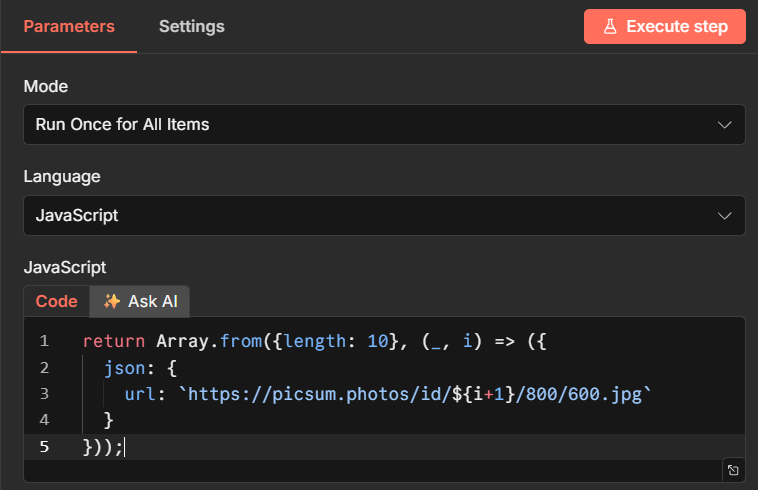
- Before ad-click Execute Step to generate 10 image URLs.
07🔹 Step 4: Download Images Using HTTP Request Node
-
Add a new node: HTTP Request
-
Set Method to
GET -
Drag the image URL from the previous node into the URL field
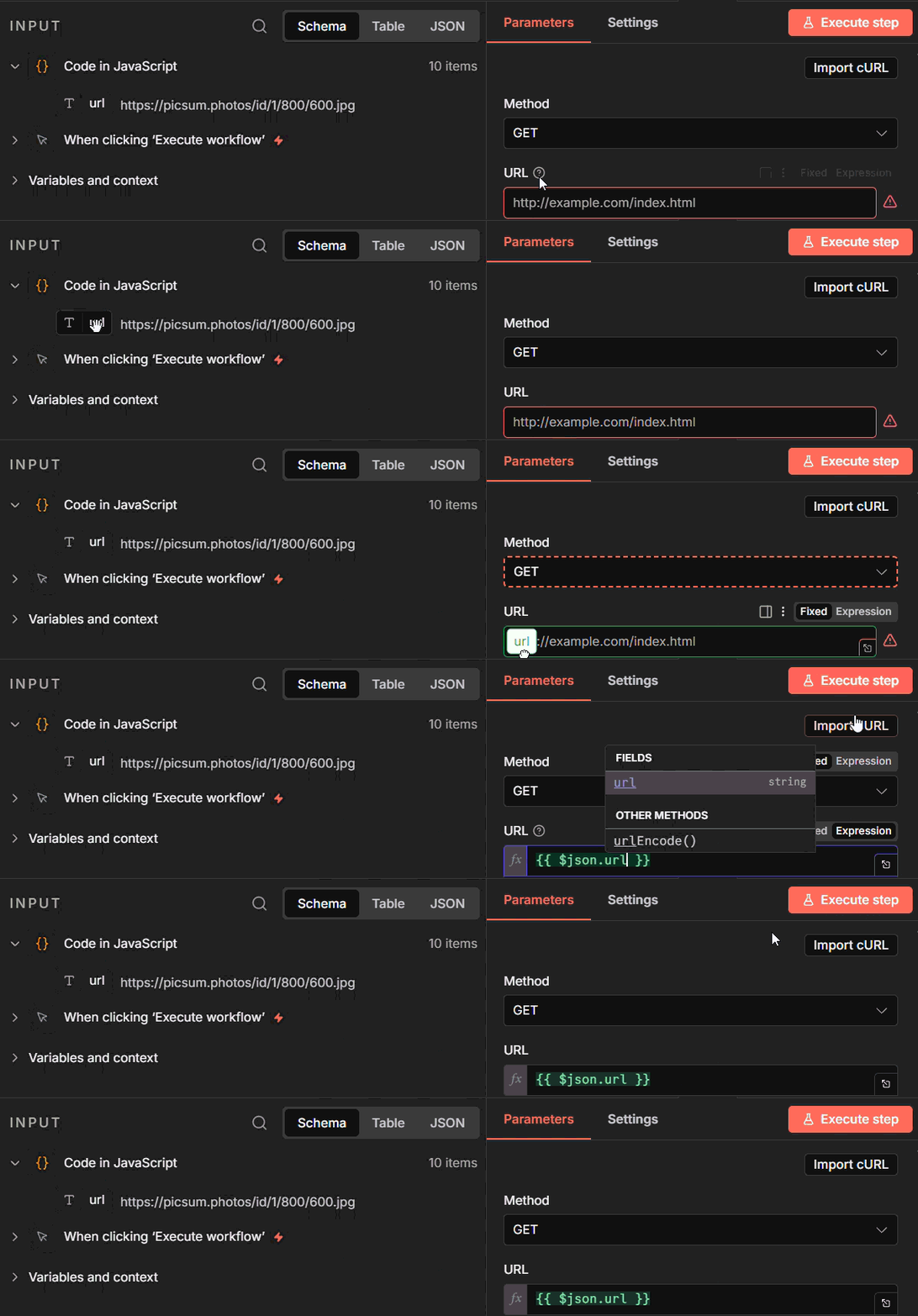
-
Click Execute Step
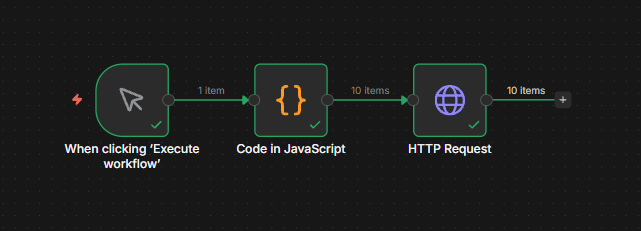
At this point, n8n downloads each image and stores it as binary data, which can be used by the next node.
08🔹 Step 5: Compress Images Using ApyHub
- Add another node: HTTP Request
- Set Method to
POST - Set the URL to: https://api.apyhub.com/processor/image/compress/file
Headers
Add the following headers:
apy-token: Your ApyHub API keycontent-type: multipart/form-data
Body Configuration
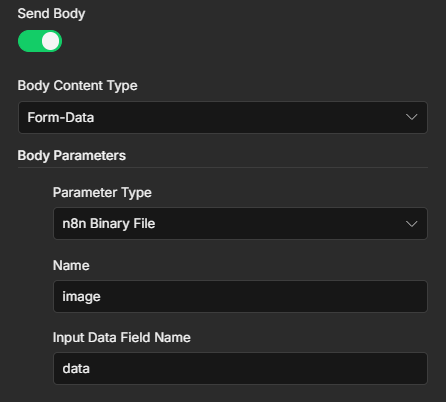
- Body Content Type:
form-data - Parameter Type:
n8n Binary File - Name:
image - Input Data Field Name:
data
Query Parameters
Add the following query parameter:
compression_percentage:20
- Click Execute Step
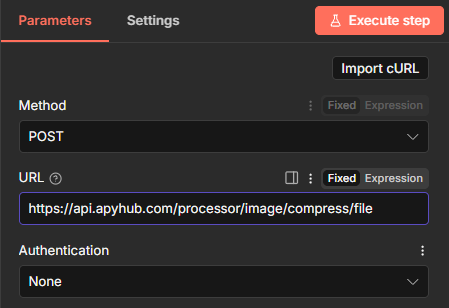
This node sends each downloaded image to the ApyHub Image Compression API, compresses it, and returns the optimized output.
09🔗 Where to Get the ApyHub Image Compression API URL
🧩 Accessing APIs on ApyHub
If you do not already have an account:
- Go to https://apyhub.com
- Click Sign Up (free plan available)
- Verify your email and log in
If you already have an account:
- Just log in to your dashboard
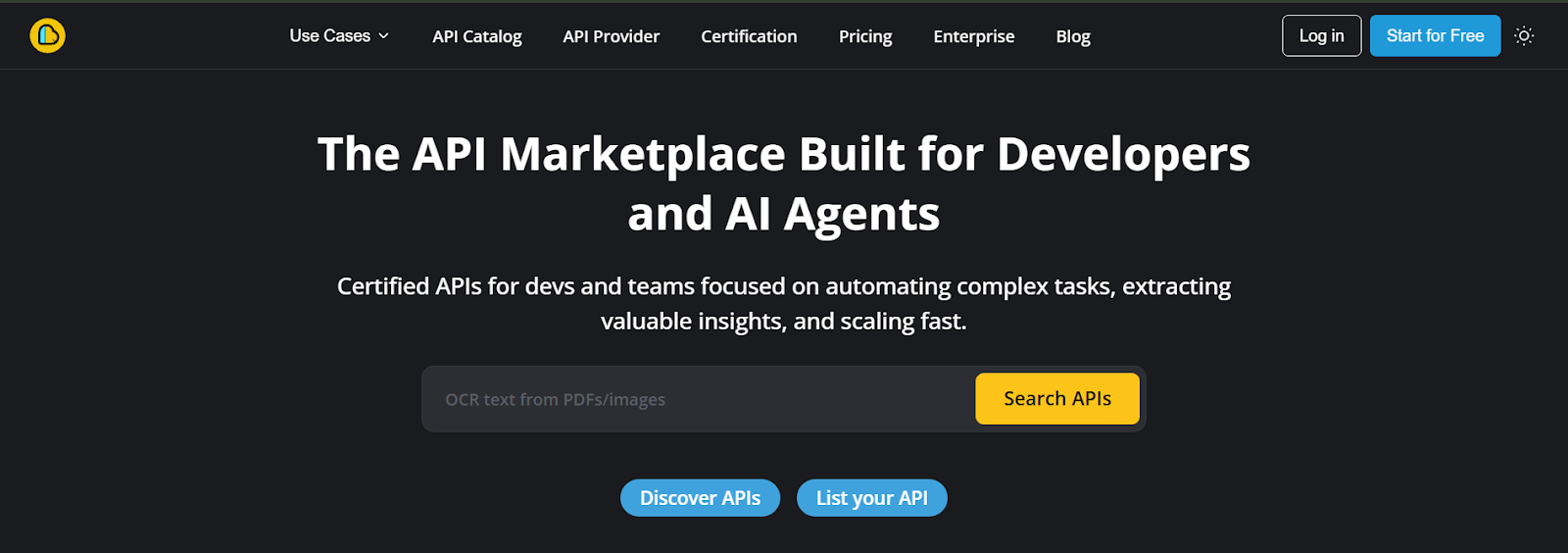
Finding the Compress Image API
After logging in:
-
Go to your Dashboard
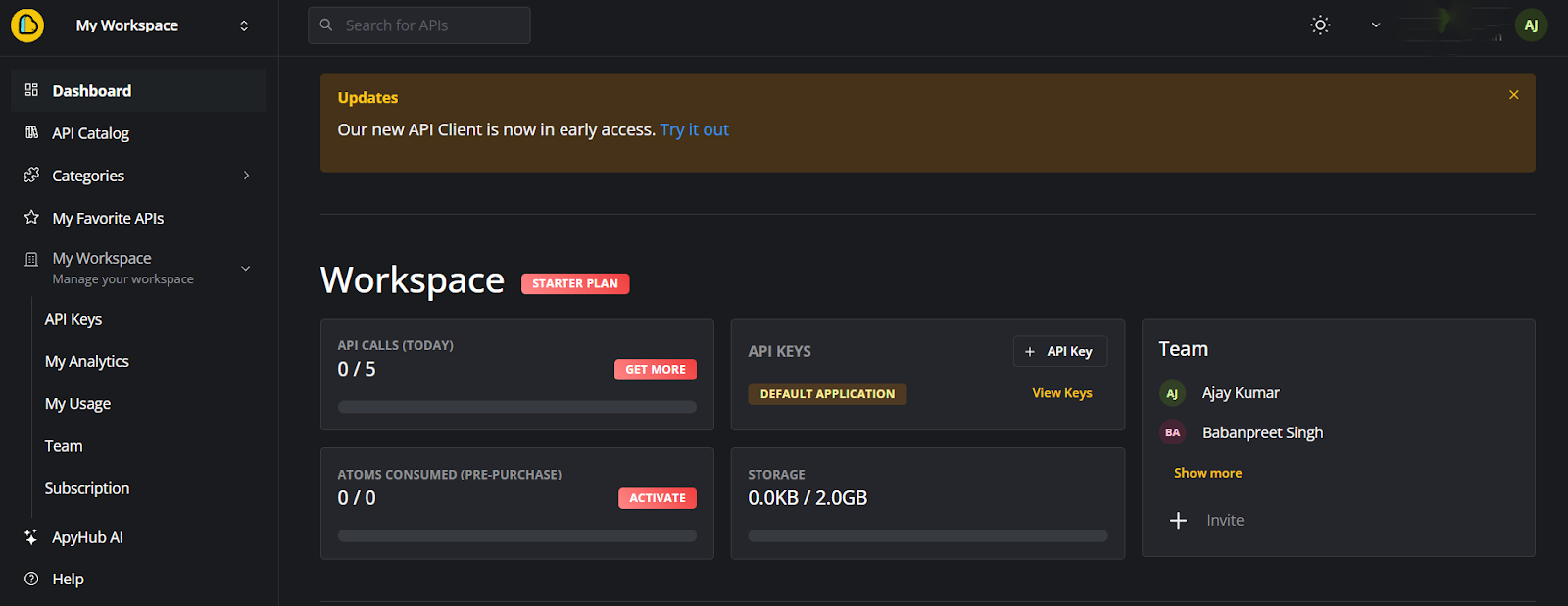
-
Click Catalog in the top-left menu
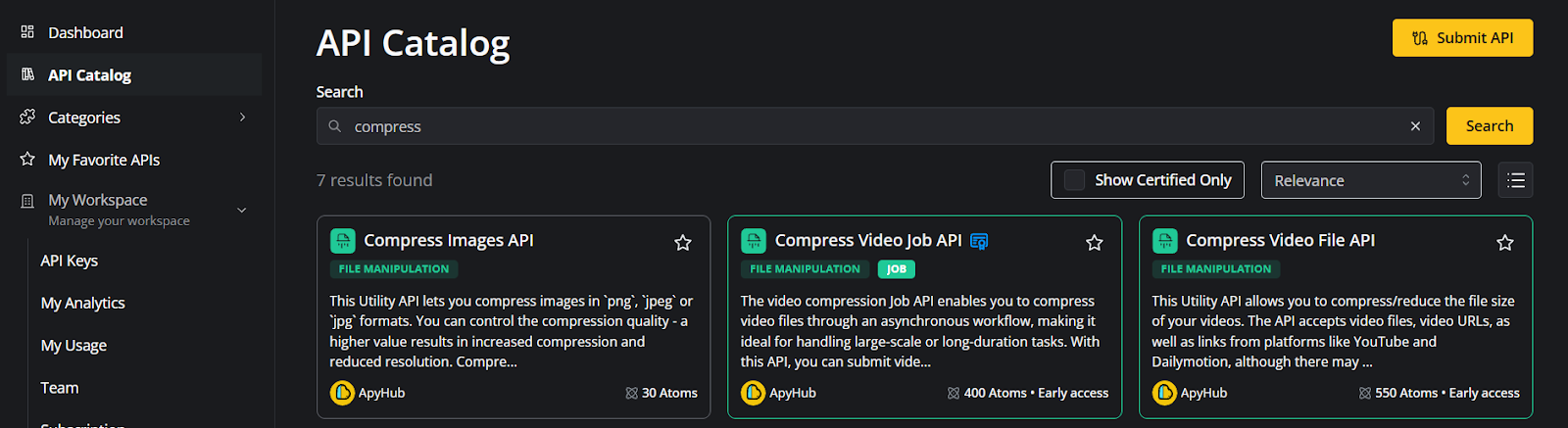
-
Search for Compress Image API
From the API page, you can copy the endpoint and paste it directly into your n8n workflow.
Configuring API Parameters in n8n
-
Enable Send Query Parameters to set compression options
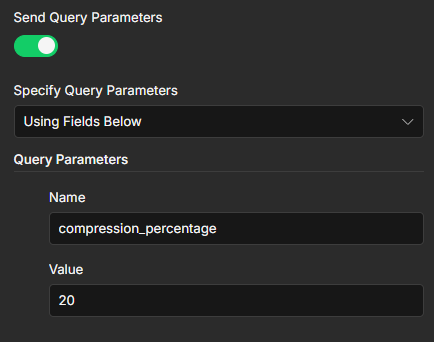
-
The required query parameters are listed on the Compress Image API page
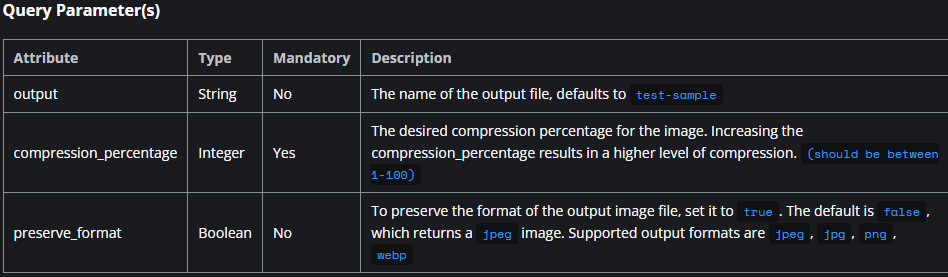
-
The required headers are available in the cURL example under the Headers section

-
Add the required body parameter:
-
Set Body Content Type to
form-data -
Set Parameter Type to
n8n Binary File -
Set Input Data Field Name to
data
Reliability Settings
After configuring all parameters:
- Click Settings (next to Parameters)
- Enable Retry on Fail
- Set Max Tries (for example,
100) - Execute the node
We configure Max Tries so that if the API request fails due to temporary issues, n8n automatically retries instead of stopping the workflow.
Note: Make sure to review the API usage limits for the Starter plan in your ApyHub dashboard before running the workflow at scale.